Setup
RingCentral Quick Dialer is distributed through the Chrome Web Store. Chrome handles installation and updates automatically.
Step 1. Install the extension
- Open the RingCentral Quick Dialer listing in the Chrome Web Store.
- Click Add to Chrome.
- Confirm the permissions prompt.
- Pin the extension to your toolbar by clicking the puzzle-piece icon and the pin next to RingCentral Quick Dialer.
Updates
Chrome updates the extension automatically when a new version is published to the Chrome Web Store.
Step 2. Connect your RingCentral account
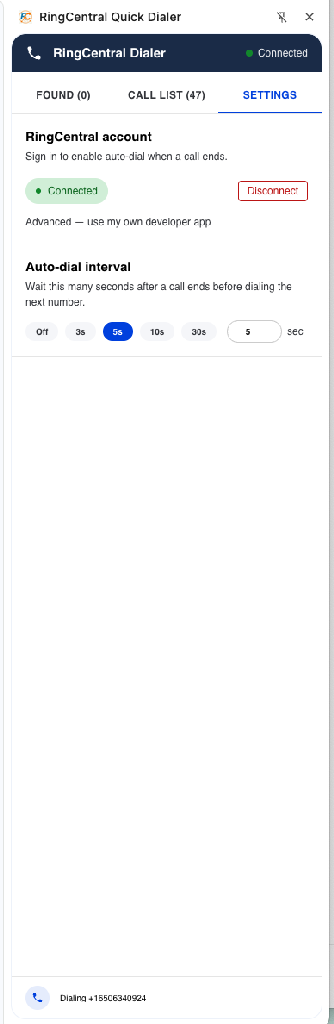
- Click the Quick Dialer icon in your Chrome toolbar to open the side panel.
- Open the Settings tab.
- Click Connect to RingCentral.
- A RingCentral sign-in window opens — log in with your normal RingCentral credentials and approve access.
- The window closes automatically. Settings will now show Connected with a green indicator.
Note
The extension uses RingCentral's official OAuth flow. Your password is never seen by the extension — only RingCentral handles your sign-in, and you can revoke access at any time from your RingCentral account.
Step 3. Configure auto-dial timing
In Settings → Auto-dial interval, choose how long the extension should wait before dialing the next number when a call ends:
| Option | Behavior |
|---|---|
| Off | Auto-dial disabled; click numbers manually |
| 3s / 5s / 10s / 30s | Preset delays |
| Custom | Enter any value from 1 to 600 seconds in the input box |
Recommended starting point
5 seconds — enough time to take notes, short enough to keep momentum.